|
Where to upload your files:
Configuring your FTP clients:
Understanding the web site
file system:
CGI Based
Programs:
The ins and outs of DNS
and how it effects your domain:
Setting up and managing
Sub-Domains:
Setting up Domain Email:
Where to upload your files:
The Home
Directory:
Your html files, and or the files
you want to make accessible to the World Wide Web must
be uploaded to your account. When you first FTP into
your account, you'll be taken to your "Home" directory.
Don't confuse this with your "web directory." The home
directory is "not" accessible to the World Wide Web;
it's a private directory where critical system files
reside. DO NOT delete files that have been created by
the system, otherwise your web site may disappear into
cyber oblivion!
The
public_html
and
www
directory - (Where web accessible files are placed)
These are the two directories, where files you want
accessed from the web must be placed. Open the folder "public_html"
, which is your "web accessible directory." The folder
named "www" is actually a shortcut to public_html, (both
of them take you to your web directory). Upload the
files you want accessible to your visitors and feel free
to make the appropriate sub-directories you'll require.

Configuring
FTP Clients:
Configuring Cute FTP
Based on version 4.2

Please note that there are a
number of older and current versions of Cute FTP
floating around. As a result, some of the instructions
provided here cannot possibly reflect all the versions,
which have been released in the past 5 years. The only
small difference you may encounter is where some of the
options can be found (depending on the client version
you're using). In any event, everything is pretty well
much the same. Let's get started:
1. Open Cute FTP
2. Select
"File"
3. Select
"Site Manager"
4. Select
"New"
Options you'll see:
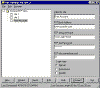
- Label for site: Enter a name for
this account. For example,
"My Root Account."
- FTP Host Address:
www.mydomain.com
- FTP Site Username:
Your main system login name
- FTP Site Password:
Your main system password
- FTP Site Connection:
Port: 21
- Login Type:
Normal
Notes About Cute
FTP:
There are a few advanced features
you may want to be aware of. These features may need to
be enabled if you're having problems accessing your site
via an FTP client. The following will explain:
Trouble accessing your site via FTP:
This can sometimes occur if your accessing the Internet
from behind a firewall, personal router, or using an
Internet connection sharing system such as NAT (Network
Address Translation). This is often a class case
scenario in a home or small office where several
computers are being shared by one Internet connection.
Symptoms include, difficulty logging in via FTP, and or
maintaining a reliable upload or download session.
Use Passive Mode instead:
From your FTP main interface,
select:
1.
Edit
(from
the main dropdown menus)
2.
Settings
A dialog box called "Settings" now
appears. Select:
3.
Connections
4.
Firewall
This opens the Connection/Firewall
dialog box:
5. Check the box that says
"PASV mode."
6. Click
OK
Don't touch any of the other
settings
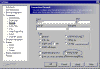
Ignore all other settings
you see here except for the "PASV_mode" setting!
Give it a try and see how it works.
If you're still having problems, you should contact your
ISP to see if they can make the necessary changes
required for you to access your site via FTP. There are
a vast number of network configurations ISP's sometimes
use, and some of which that can cause problems for users
wanting to access the web beyond that of a browser.
How to view all files in
your account (For Advanced Users).
Advanced users may want ability to
view "all hidden" files in their directories. While most
of these are critical system files, there are a few,
which can be manually edited by "Advanced Users." This
is done by inserting an entry into the "File Masking"
feature in the client.
Unmasking Hidden Files:
1. Open Cute FTP
2. Go to the site manager
3. Select your account
4. Select "Edit"
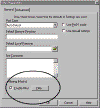
A dialog box opens called "Site
Properties":
1. Check the "Enable
Filter" box
2. Click the
"Filter" button
3. Check the
" Enable Remote Filters (Server Applied Filer) " box
4. In the "Remote Filter" window,
type this command
-a
5. Click ok
That's it!
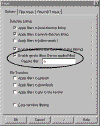
The -a command will unmask "all" files in your web
account.
Final Note:
NEVER REMOVE OR ALTER FILES, WHICH
HAVE BEEN CREATED BY THE SERVER or C-Panel!!
Unless you're an advanced user, please leave all files
that have been created by the system alone! Doing
otherwise could cause serious problems with your
account, and in some cases take it offline completely.
When in doubt "ASK", do not Delete!
Setting Up WSFTP

Please note that there are a number of older and current
versions of WSFTP floating around. As a result, some of
the instructions provided here cannot possibly reflect
all the versions, which have been released in the past 5
years. The only small difference you may encounter is
where some of the options can be found (depending on the
client version you're using). In any event, everything
is pretty well much the same.
Setting up WSFTP:
1. Open your
WSFTP client
2. The dialog box "WS_FTP" Sites
should display. If not, click the "Connect" button.
3. Select
"New"
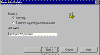
You should see this dialog box:
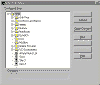
You'll be taken through these options:
1.
New Site/Folder:
Choose a name for this account
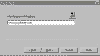
2.
Host Name or IP address:
www.yourdomain.com
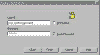
3.
User ID:
Main system login
4.
User Password:
Main System Password
5.
Select
"Save Password."
6.
Select
"Finish."
Done! Your can now FTP into your
site
Notes About WSFTP:
Main Username and Password:
The main Username and Password was
sent to you in your welcoming email, and are also the same
ones used to access C-Panel. If you've changed your
"main" Username and Password before setting
this up, then use you must use them instead.
Trouble accessing your site via FTP:
This can sometimes occur if your accessing the Internet
from behind a firewall, personal router, or using an
Internet connection sharing system such as NAT (Network
Address Translation). This is often a class case
scenario in a home or small office where several
computers are being shared by one Internet connection.
Symptoms include, difficulty logging in via FTP, and or
maintaining a reliable upload or download session. If
this is the case, try "Passive Mode."
Setting Passive Mode:
1.
Open the
WSFTP account manager
2.
Highlight your account
3.
Select
"Properties"
4.
Select the
"Advanced" tab
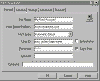
5. Check the box called
"Passive Transfers."
6. Click "OK"
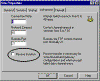
Select passive mode, click
"OK", and try it
again.
How to view all files in
your account (For Advanced Users).
Advanced users may want ability to view "all hidden"
files in their directory. While most of these are
critical system files, there are a few, which can be
manually edited by "Advanced Users." This is done by
inserting an entry into the "File Masking" feature in
the client.
Unmasking Hidden Files:
1. Open the
WSFTP account manager
2. Highlight your account
3. Select
"Properties"
4. Select the
"Startup" tab
5. In the
"Remote File Mask"
window, enter -a
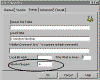
The -a command will unmask
all files in your web account.
Final Note:
NEVER REMOVE OR ALTER FILES, WHICH
HAVE BEEN CREATED BY THE SERVER or C-Panel!!
Unless you're an advanced user, please leave all files
that have been created by the system alone! Doing
otherwise could cause serious problems with your account,
and in some cases take it offline completely. When in
doubt "ASK", do not Delete!
Understanding the web site file system:
index.php and why you should use it:
This again is where a number of
newer webmasters become stumped. They upload all of
their files and directories, and then want to access
them with their browser, but forgetting to create their
welcoming page as index.php, so here's what happens:
They access their site as http://www.mydomain.com/ or
using the associated IP number, for example, http://test.php/,
and what they see is their entire file directory
structure! Yikes!… It looks just like exploring the C
drive on your computer! You don't want visitors seeing
that, do you?
When you access your site by calling it as
http://www.mydomain.com
or the assigned IP (for example),
http:// 217.74.132.26/, the
web server looks for the "index.php" file as the
(default file) to be sent to visitors, and thus this is
why
http://www.mydomain.com/ by
itself will automatically display the home or welcoming
page. It's because the server automatically looks for
index.php whenever a domain or directory is called
without a filename appended to it such as this, http://www.mydomain.com/file.php
If it can't find index.php, it will simply list "your
entire web directory" to everyone that access's it,
which is a MAJOR security risk! ALWAYS, use an "index.php"
file in any directory you create, including your "root"
web directory. In general, it's always a good idea to
use "index.php" as your main page in "all
sub-directories" of your account. Forgetting to place an
index.php in your root web, or any subdirectory of your
web for that matter will effectively leave all of its
contents viewable to the world.
Understanding case sensitivity:
Another small detail, which can
throw many newer users into a tailspin. Unlike your
local PC, the Unix file system is very particular about
"uppercase" and "lowercase" file names. Therefore, if
you were to install a script, (let's say the wwwboard
discussion forum) for example), the name of this script
would be wwwboard.pl. If you name a file picture
file called me.jpg, then this is what you must call it
as. Naming it me.JPG for example, (observe the
uppercase) tells a Unix web server to treat it as a
totally different file name.
Unix file servers are exceptionally fussy on this issue,
so make sure you pay close attention to "case' when
uploading files, or installing and configuring cgi based
scripts. The same rule applies for all files including
your .php pages. Again, the server treats .php and
.php as two entirely different files. Want to keep in
simple? Try to stick with lowercase letters in all file
names and extensions.
Uploading your files in the correct mode (ASCII or
Binary)?
Uploading in the wrong format for
images or binaries will result in a strange mess
appearing in place of the file. For CGI scripts,
this mistake has to be the most common cause of that
annoying error known as the (Server 500 Error -
Malformed Headers), or something to that lovely extent.
While this can be the result of many various programming
errors, the most popular amongst new users are uploading
their scripts in the "WRONG" format. Your cgi scripts
"MUST" always be uploaded in ASCII mode. Alternatively,
if you upload an image or .exe file, it must be done in
"BINARY" mode.
The difference between ASCII and BINARY?
In short, html or text based files
are supposed to be transferred in ASCII mode. Uploading
them in Binary mode will append ^M's to the end of every
line. In most cases, this is OK, with html files because
your browser will ignore them. BUT, with other text
files such as cgi scripts, uploading them in binary will
damage them, thus causing a (server 500 error). This is
because binary mode has added ^M's to the end of every
line, which are not supposed to be in the program. This
of course, is what causes the additional message of
(Malformed Headers), which often displays at the bottom
of the "Server 500" message when a CGI script has
crashed.
Once again, BINARY mode is used for transferring
executable programs, compressed files and all
image/picture files. If you try to upload an image in
ASCII mode, you observer a strange mess appearing on the
page where the image is suppose to appear. ASCII mode in
this case, has corrupted the binary coding in the jpeg
or gif image. If this happens, just re-upload it in the
Binary format
Setting your FTP client to automatically detect ASCII
and Binary file transfers:
Most FTP programs have "AUTO" mode,
which will tell the FTP client to automatically detect
the file type you're transferring and will select the
appropriate mode. By default, most FTP programs will
attempt to transfer everything in binary mode, but when
"Automatic" is selected, the FTP client will check a
list of known ASCII extensions, (for example, .pl, .cgi,
.txt). If it detects one of these extensions, it
automatically switches to ASCII mode.
By Default, most of the well-known files to be uploaded
in ASCII are already entered, however you can manually
add additional extensions that you would like to
transfer in ASCII mode by selecting the feature called
"Extensions." Here, you can any additional extensions
that will cause the FTP client to toggle to ASCII mode
automatically upon detecting an extension entered in its
list. Remember, you must set your transfer mode to
"Automatic" for this to work.
File types and what they represent:
Various file types can effect both
the behavior of your files, as well as how the server
treats them. While there are numerous file extensions,
which represent a host of various file types, we'll
stick to the basic ones in this quick overview:
The .php file:
This is one is the most commonly
used and the most one of you are already familiar with.
Html stands for (hypertext Markup Language).
Essentially, it tells the server, as well as the clients
browser to process and display the .php coding in a
way, which is meaningful to the end user through a
browser.
The .htm file:
Many of you have probably noticed
this newer extension appearing in place of the
traditional .php one. In short, .htm is most often
created, and or generated from the Microsoft FrontPage
web editor. The two are essentially the same and provide
the same basic purpose. Unless you're using FrontPage,
you will probably use the .php extension at the end of
your web pages.
The .gif and .jpg file:
Most commonly used because of its
good compression in web page images. Generally, .gif
files are the fastest loading, as they remove a lot of
information, which is not required to maintain image
integrity, but to a point however. .jpg will allow more
flexibility in compression and quality settings, however
can also result in larger files.
The .CGI and the .pl file:
.cgi and .pl are most often used for
perl scripts. Perl scripts are small text based
programs, which are executed on the server end, and will
perform a host of interactive functions for a web site.
In short, when a .pl or .cgi file is called, it tells
the server to process it using the "Perl Interpreter."
The Perl Interpreter understands the programming within
the script, and will perform the set of sub routines,
which will yield your desired effect. This desired
effect could be anything from a simple web page counter,
to more complex programs such as discussion forums,
e-commerce platforms, to online auctions. In many cases,
you can download these "ready to go" scripts for free,
and in others you may have to purchase them.
FrontPage and FTP:
If you're planning on
using Microsoft FrontPage to manage your web site, there
are a couple of issues things you may want to keep in
mind:
There are two worlds. The General Unix hosting world, and
the Microsoft world. While this is not necessarily a bad
thing, Microsoft had indeed decided to play by its own
rules. As a result, FrontPage does not always
conform to the rules of Unix, so you should be extremely
careful when accessing a FrontPage web via FTP. It's
easy to damage the FrontPage web, as well as it's
associated server extensions, and if it happens, you may
loose the ability to administrate it from your FrontPage
Explorer. To avoid problems like this:
-
Do not alter, or delete files that are part of a
FrontPage web
-
Do delete, move, or alter directories ending in _vtf.
These are the FrontPage extensions
The ultimate solution:
If possible, try to create your FrontPage webs in
sub-directories of your root. For example, http://www.yourdomain.com/home.
This way, you can safely FTP into your root account to
perform other tasks, while avoiding the FrontPage webs,
which are safely out of the way in their own separate
homes. Remember! DO NOT delete any folders, which end in
_vtf! This will kill your FrontPage web, and we'll have
to reinstall the extensions for you. For additional
information on FrontPage, please see our dedicated
tutorial on it.
Using CGI
programming:
Where
to place your CGI scripts:
Although there is nothing dangerous
about placing cgi scripts in random directories
throughout your site, it's best if you keep them in
their own little home known as the cgi-bin. This
minimizes security risks and allows you to maintain your
cgi programs from one directory.
The path to Perl:
One of the first things you must do
when configuring a script, is set the correct path to
the Perl interpreter, which is the engine responsible
for processing the script. The path to Perl on our
servers is: #!/usr/bin/perl
The path to
Sendmail:
Some programs such as the ones,
which send email will need to know where the Sendmail
program resides on the server. The script will typically
have a setting like this: $mailprog = '/usr/sbin/sendmail';
and will want you to set it appropriately. Sendmail on
our servers can be found here: /usr/sbin/sendmail or
/usr/lib/sendmail.
Setting directories within your cgi scripts:
When you configure a cgi script for
"any" server, it may ask you to set variables such as
the base, relative, and CGI directory/url settings.
Here's an "example" using Matt Wright's wwwboard.pl
script. Obviously, each script may vary, but this should
provide you with some basic idea:
$basedir = "/home/yourlogin/public_html/wwwboard";
$baseurl = "http://www.bustitouthosting.com/wwwboard";
$cgi_url = "http://www.bustitouthosting.com/cgi-bin/wwwboard.pl";
Most scripts come with documentation on how to set these
directories. Please make sure you read and understand it
before configuring the script. New to cgi? Here is a
page with questions and answers to numerous questions
evolving around the inns and outs of using cgi within
your scripts:
http://www.w3.org/Security//www-security-.php
Another excellent site, which
provides step by step chapters is:
http://www.cgi101.com/class/
Understanding File Permissions:
There are a number of file
permissions, which can be used for a variety of
different purposes, however we'll limit this tutorial to
the ones most commonly used. To begin with, it's
important you understand the three categories of
permissions, which are:
Owner Permissions:
The owner is you. In most cases,
this is not so much of a concern, as you can only obtain
owner permissions in one of two ways. 1. FTP into your
account using your Username and Password. 2. Login via
Telnet with the same information.
Group Permissions:
The represents a group of users who
have access to a particular directory. For example, a
password protected directory, whereas only members can
access it upon providing the correct Username and
Password. In this case, any permissions you assign to
"Group" would be applicable to users with access to that
particular directory.
Public
Permissions:
This is the most important one of
all. Public permissions determine what your world wide
visitors can and cannot do with your files. ALWAYS make
sure you understand what a particular permission does
before assigning it to a file. If not, you may wakeup to
find your website demolished by some clown who was
snooping about and gained access to your files.
Setting File Permissions:
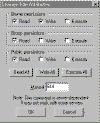
To set file
permissions:
1.
Login with your FTP client
2.
Open the directory where the file
you wish to set permissions on resides
3.
Right click on the file and select
CHMOD
A box similar to the one above will appear
Observe how you can "select" the individual permissions
you want, or simply enter the 3 digit number if you know
what it is. Most instructions included with downloaded
scripts will tell indicate this to you.
By default, all files uploaded to
the server automatically have permissions set to 644.
The setting 644 is relatively safe, as it provides
"Read" and "Write" access to the owner, while limiting
the rest of the public to "Read Only" access.
When setting permissions for cgi scripts, the most
common permissions setting is 755. 755
allows the owner "Read and Write" access, while allowing
the Group and Public "Read and Execute" permissions. So
what are we actually saying? In short, when users access
your cgi script, the server has been instructed to grant
them permissions to "Read and Execute" it. Sound scary?
It's not actually…
Remember that a script is a program that must be
processed by the server. As long as the script is
written properly, you can safely allow users to execute
it, and thus providing the desired results. For example,
if they wanted to post a message to your wwwboard
discussion forum, then they would need these permissions
to execute wwwboard.pl, which would write their new
message to an html file, which is displayed on the main
forum. The new message would reside in a
directory on your site so other users could view it.
Most cgi, perl and other scripts you'll be installing
come complete with instructions telling you which
permissions you'll need to set them to.
WARNING!
Setting permissions on files is a
relatively simple task, however MAKE SURE you fully
understand what it is you're allowing the public to do
with your files. For example, some less experienced
users often make the fatal mistake of simply setting ALL
of their files to 777. While 777 will automatically
allow executing privileges, it also allows full "READ,
WRITE, and EXECUTION ability to the entire world!!!!
This is how web sites get hacked! While most visitors
have good intentions, all it takes is one person whom
snoops about your files seeking an "Open Back Door."
This could result is them gaining full access to your
directories, which means they can do anything from
deleting your entire site, to defacing it with
obscenities.
New to cgi? Here is a page with questions and answers to
numerous questions evolving around the inns and outs of
using cgi within your scripts:
http://www.w3.org/Security//www-security-.php
Using
Server Side Includes - SSI
SSI works in conjunction with a web
page usually with the .shtml extension. The .shtml
extension tells the server to do something different
with the web page. When you append the .php or .htm
extension, this tells the server to "read" the page
only. The .shtml extension tells the server to "Execute"
the page, in addition to just reading it.
So, why would you want to execute the page? There are
various commands you can program into a web page, which
the server will look for and parse when the file is
called as .shtml. In many cases, this mode is used in
conjunction with Server Side Include (SSI) tags, to call
a CGI script. For example, you have a visitor counter
script, and we'll call it count.cgi. Every time someone
visits your website, you want the script to be called,
so that it logs the visitor into a file.
To do this, you would place an SSI tag into your web
page. The tag in this case, would look something like:
<!--#exec cgi="/cgi-bin/count.cgi" -->
This small tag, which is hidden in the html coding of
your page is telling the server to:
1. Go to the cgi-bin
2. Execute count.cgi
That's it! The information has been captured and
processed by the count.cgi script. Of course, that's the
short version of what happens. The long version would no
doubt, would take us far beyond the scope of this
document.
PLEASE do not use the .shtml extension on "all" of your
web pages unless it's absolutely necessary. With a busy
web site, this means that every page must be executed,
as opposed to just read. This as you can appreciate, can
add considerable memory and CPU load to the system. As
always, read the instructions that came with your script
carefully. They should provide specific
instructions on how to configure the script, as well as
the SSI tag.
The ins and outs of DNS
and how it effects your domain:
Understanding DNS and Name Servers:
This is an area, which causes a
great deal of confusion amongst both webmasters and end
user clients. Before we go any further, let's look at
this quick analogy: DNS can be considered something
similar to that of a phone book. When you move from one
location to another, your last name stays the same, but
your phone number may change. In order to point your
name to the new phone number, you must contact the
telephone service provider, which will assign you the
new phone number. In addition, they update all directory
information data basis to reflect you as pointing to
this new phone number.
What is DNS?
DNS stands for "Domain Name Server."
The domain name server acts like a large telephone
directory in that it's the master database, which
associates a domain name such as (http://www.mydomain.com)
with the appropriate IP number. Consider the IP number
something similar to a phone number: When someone calls
HTTP://WWW.fasthostpro.com/,
your ISP looks at the DNS server, and asks "how do I
contact fasthostpro.com?" The DNS server responds, it can
be found at: 157.238.96.231. As the Internet understands
it, this can be considered the phone number for the
server, which houses the HTTP://WWW.fasthostpro.com web
site.
Where are all of the DNS records kept?
This is slightly more complicated,
but for the purpose of this overview, we'll try to keep it
as general as possible. There are 2 basic places DNS
records reside:
International Root name servers (13 exist throughout the
world)
Your domain register, where your current DNS settings
reside.
When you register/purchase your domain name on a
particular "registers name server", your DNS settings are
kept on their server, and in most cases point your domain
to the Name Server of your hosting provider. This Name
Server is where the IP number (currently associated with
your domain name) resides.
The entire hierarchy is somewhat involved, but in short,
the world Root Name Servers can be considered the master
listing of all DNS records, and there are currently 13 of
them in the world. These name servers are where all the
master DNS records are kept. The DNS server of your ISP
will typically query the Root Name Servers once every
24-hours. This is how they update all of their DNS tables,
which in turn, resolve www requests to the IP number of
the server they reside on.
Changing your Name Server settings, so your domain points
to your fasthostpro.com account:
Your "Name Server Settings" must be
updated to point to your account on fasthostpro.com. You
originally purchased your domain name from a register, and
this register is where your current DNS settings reside.
That is, unless you transferred your domain name to an
alternate register, in which case, you would control your
DNS settings from there.
The "Register" your domain resides on, communicates your
'current' DNS settings with the International Root name
servers, which is turn share this information with ISP's,
routers, and cache engines around the world. In essence,
it's like a worldwide directory that other computers can
refer to when they want to match a domain name with its
associate IP number. This IP number is how the particular
server your website resides on is located.
Accessing your domain manager:
Simply go to your domain registers
web site, and look around for links, which point to
something like, domain manager, manage domain, or
something of that administrative nature. In your
welcoming email, you were sent DNS settings, which look
similar to this example:
NS1.fasthostpro.com 69.57.152.164
NS2.fasthostpro.com 69.57.152.165
Most of the newer registers such as the (OPEN SRS) based
entities have turned this into a 5-minute process. You
simply login to the register, select 'manage domain' and
you'll be presented with an option to update your new
DNS numbers. Contrary to popular belief, Network
Solutions 'now' also provides an online interface to
change these settings, so this process with them is no
longer as complicated as it use to be, however it's
still not as simple as the OPEN SRS based systems.
If your particular register 'does not' provide a domain
manager of some type, then you'll need to send them a
message requesting a change of DNS. This is an unlikely
scenario, as most every register now allows you to
manage your own domain settings from a web based
interface.
Once you've accessed the "management interface" of your
domain name, look for a setting, which says "change or
manage DNS settings." In most cases, you can simply cut
and paste the DNS settings we've sent you directly into
the spaces, which correspond to your DNS management
settings. Remember, the DNS settings we're displaying
here are an "example."
The 3 to 4 day propagation period - Understanding what
happens during this time frame:
In short, patience is a virtue.
Remember what we talked about earlier in this chapter
regarding the shear size and scope of the worlds DNS
system? In short, when you change your DNS settings,
these new settings must propagate throughout the worlds
DNS servers. It also means that every ISP (Internet
Service Provider), must update their DNS records to
reflect these new changes, which in most cases, is done
automatically every 24 hours, but not always however...
Where do the Root Name Servers receive their information
from?
The Root Name Servers will query
"domain registers" several times a day. Domain
Registers, being entities such as Network Solutions, and
the newer OPEN SRS based systems. The Root Name Servers
will gather this information from the many registers now
in existence, and update their master records
accordingly. Now your ISP must access the Root Name
Servers, and update their DNS records, which reside on
their 'local' DNS server. This process is fully
automated and most ISP's will check the Root Name
Servers for updates every 24-hours. Beware however, that
some lame ISP's will delay this process for as much as 2
to 4 days in some cases. If that happens, it will no
doubt cause additional confusion, as everyone else will
be reaching your new account on our servers except you.
This is because your ISP has not updated their DNS
records, and or have not cleared their DNS cache, which
means they'll still be pointing your domain name to your
old server. If it's a new domain name you've registered,
then you'll receive a blank "Site Not Found Page."
DNS Cache and
your ISP:
There is also the issue of DNS
cache, which is something we won't go into great detail
about here, but here's the short version. Every time you
access a site from your ISP, they cache the URL, as well
as its associated IP number. If their network is
properly setup, these DNS cache records should "Expire"
at least every 24-hours. If they did not (which is often
the case), you'll experience this: You enter your
http://www.mydomain.com/ URL, and it keeps taking you
back to your old server account.
In a large number of cases, it's the result of an ISP
who "Did Not" configure their servers to "Expire" the
DNS cache records at the appropriate intervals.
Unfortunately, this adds additional confusion to their
clients, and especially the ones whom are trying to
point their domain name to a new server. Yes, it will
make you want to scream sometimes, however if you
understand whom is actually at fault, then you'll know
who to scream at :)
The DNS propagation process is not limited to ISP's!
HA.. Just when you thought you had
it all figured out! Unfortunately, there's more folks.
The Internet itself must update/clear its DNS cache as
well. When we say the Internet, we mean the numerous
intermediate "points of access" you're routed through
before reaching your final destination. For the most
part, these intermediate points of access consist of
"Internet Routers" and "Internet Caching Engines." These
too, maintain their own DNS cache, which assists them in
routing traffic/resolving URL's to the correct
destination IP's. Don't worry though, as Internet
routers are usually faster at clearing their DNS cache
than ISP's are.
What to expect during this 2 to 4 day propagation
period:
In most cases, the propagation
process will take at least 48 hours to complete. The
first thing that happens is the "World Root Name
Servers" will check all of the various "Domain Registers
for updates. Ok, so now the Root Name Servers have done
their job. The rest of it is up to the many ISP
providers who "should be" updating their DNS records (at
least every 24 hours), but a number of them will not.
Side effects that can be expected during the propagation
time frame:
It's perfectly normal for strange
things to happen within the 48-hour propagation period,
but sometimes longer. While we could provide a full list
of all the anomalies that can occur during the DNS
propagation period, we'll stick to some of the most
common scenarios that most people experience:
HELP! My friends can reach my
new site, but I'm still being directed to the OLD ONE!
This is a class case of your friends
ISP (who did update their DNS records), but yours
unfortunately did not. As a result, your ISP is still
pointing your domain name to the old DNS record, which
is your old hosting account. Wait a couple of more days,
and if it appears that everyone but you can access your
new account, then contact your ISP and tell them to
expire their old DNS cache records.
WOW! http://www.mydomain.com was
taking me to my new fasthostpro.com account just a
minute ago, but when I try it now, I'm being taken back
to my old hosting account - what's up with this?
In all likelihood, your ISP may be
in the process of clearing their DNS cache, and or
updating their local DNS server records. During this
small interval, it's normal to fluctuate between the new
and old web site, as the old DNS records may not have
completely expired from their cache yet. Give it another
several hours and it should be fine.
HEY! My new site comes up for me, but my friends are
being directed to my old one!
Break out the coffee and donuts, and
consider yourself lucky. Your ISP is on the ball and
updates DNS records/ clears DNS cache in short regular
intervals. Your friends may be using an ISP, which is
not as fast, and or efficient at doing so. The only
remedy for this is time. Eventually, the other ISP's DNS
cache will expire and be replaced with the updated DNS
records.
What's going on with my email?
When I try to access it, I receive a "host does not
exist" or a "cannot authenticate" error message.
This can happen for a number of
reasons, but in most cases, it's because your new DNS
records have not fully completed the propagation process
yet. Consequently, you may be trying to access your old
email account on your "old server", which you may have
already cancelled, or it's in a state of DNS flux, which
means it points to the new server one moment, and the
next, points back to the old server.
Give it some more time and it will eventually settle
down. In the meantime, consider accessing email from
your account using the WebMail based reader. If your
domain has not propagated as of yet, you can access your
email account via WebMail with your IP number.
Example: http://12.23.36.78:2082/neomail/neomail.pl
This will allow you to access your default mailbox on
your account. Replace the IP number with the one we sent
you, and do not remove the :2032 port number in the URL.
Microsoft FrontPage will not
accept a Username and Password, or displays the error
message (FrontPage Extensions Are Not Installed).
While you should be able to access
FrontPage with your associated IP number (until your
domain is resolving to our servers), this is not always
the case. FrontPage can behave in a number of different
ways depending on which direction the wind is blowing.
In some cases, it will allow you to initiate an upload
session, but upon asking for your Username and Password,
will not recognize them. If this happens, the best thing
to do is wait until your domain name is answering to our
servers. One thing we know for sure, is FrontPage will
work without much of a problem if you're using the full
www.mydomain.com URL to manage your site with. Feel free
to try it with your IP, but we cannot guarantee it will
work.
It's been over a week. Everybody
else can access my new site except me!
Was your domain originally hosted by
your ISP? If so, they may not have deleted this entry in
their DNS files. This results in you, and or anyone else
accessing the net from this "particular ISP" being
directed to your old web site on their servers. A number
of ISP's forget this small detail, which can result in
weeks of utter confusion and frustration. If this is
happening to you, contact your ISP and make sure they've
made the necessary changes to their DNS records.
Checking your DNS update status (outside of your ISP):
In the event you're becoming
impatient, and or are wondering if the rest of the world
outside of your ISP can access your new site, you can
proxy yourself to another network and test it there. In
many cases, you'll be surprised to see your site
responding perfectly, yet when you attempt it directly
from your ISP's servers, it does not exist.
There are several services, which allow anonymous
surfing across the net. While this is not the intent
here, they can be used for trouble shooting domain
resolution problems. How? Because they proxy you
through their network, which means your URL requests are
controlled by "their" DNS cache records. These services
update/expire their DNS cache far more often than ISP's,
which makes them well suited for testing your domain
name through a network, which operates with the latest
DNS updates across the web.
To run this check, you can try accessing your site
through one of these two services:
https://www.safeweb.com/o/_s:top.php3
http://www.anonymizer.com/
Both of them allow you to enter a
URL, and proxy your request through their servers. If
your site is accessible from these servers, then chances
are, your ISP has yet to expire their old DNS cache
records.
Working on your account during the DNS propagation
period:
You can still work on your new
account until your domain name finds it way to our
servers using your "IP Number", which was included
in your welcoming email. Your IP number is how your new
domain will be identified on our servers. Using it at
this point will provide a means for you to access your
account, as well as test your new site by using
something like http:// 211.94.122.26/ (obviously
you'd replace it with the IP number we sent you).
One easy way to check and see if your domain is
answering to our servers yet, is to create a file called
"test.php"
and place it in your web directory. Keep checking
the URL http://www.yourdomain.com/test.php and see if
it works. When it does, you'll know your domain name is
answering to your account on "our servers", and has been
officially transferred.
The personal DNS (for advanced webmasters).
Personalized Name Servers are
generally used by webmasters who will be reselling web
hosting accounts, and want to add a professional look to
their DNS. Why? If you're reselling accounts
under your own entity, you could use our name servers,
which would be sent to your customers in the form of:
NS1.fasthostpro.com 69.57.152.164
NS2.fasthostpro.com 69.57.152.165
Not bad, but what if you want your DNS settings to
appear as a part of your company? Let's say your company
was www.yourwebhost.com. If you desire, you could setup
your own custom branded DNS, which could display as:
NS1.YOURWEBHOST.COM 69.57.152.164
NS2.YOURWEBHOST.COM 69.57.152.165
This provides a somewhat more professional look to your
customers when sending out your DNS settings in a
welcoming email. In addition, if someone does a WHOIS
lookup on your domain name, it appears as your personal
DNS, as opposed to the company you're reselling for. Not
really a big deal, but some webmasters do not want to
advertise the host they're reselling for, as they feel
it does not portray a professional and independent look.
Personal name servers are offered to clients whom are a
part of our (reseller program). If you're not a
reseller, please use the standard DNS settings we
provided you. There is no superior advantage to having
your own name server unless you're a reseller, and or a
web designer who is also planning on hosting the
websites they build.
Setting Up Sub
Domains
What is a
Sub-Domain?
A sub domain is one, which resides
under your top-level domain name, but in many ways
behaves as a "totally independent domain". You'll
observe that many of the larger corporations use these,
as they're somewhat more professional looking, and do a
better job of creating an independent precedence for
service or product lines, which appear as separate web
entities.
Example: You're a GM dealer with a site such as GM.com.
You sell everything from Pontiac's to Cadillac's. To
better organize your online presence, you could create
sub domains for your various automotive lines. These
would appear as
http://pontiac.gm.com/ or
http://cadillac.gm.com/.
Also note that in most cases, the
domain need not be called with the http:// or www
protocol. pontiac.gm.com can be called
exactly how it appears here.
Setting up a
sub domain:
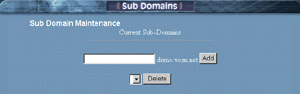
Thanks to C-Panel, this task has
been made easier than ever and can be achieved as
follows:
1. Login to
C-Panel
2. Select
Sub Domains
3. Enter the
name
of your new sub domain
4. Hit "Add"
That's it! Your new sub domain is
now ready for use. To find it, login to your "main web
directory" through C-Panel by selecting "files" or
simply use your favorite FTP client. You'll see it
residing as another directory. Upload your files to this
directory just as you would with any other. For example,
if you created pontiac, then a directory called pontiac
is what you'll be looking for.
Independent cgi-bin
All new sub domains are created with
their own independent cgi-bin. This means your new sub
domain operates independently of everything else, and is
almost like having a whole new domain. Feel free to
configure all cgi scripts, which are pertinent to the
functioning of this sub domain. A nice feature, as it
saves your main cgi-bin from becoming cluttered and
somewhat disorganized; especially if you utilize a lot
of cgi programming.
Independent email for the new sub domain
- (In final development)
Yes, you'll observe duplicates of all "configured pop
email accounts" appearing beside the sub-domain, and or
all sub-domains you've created. Now I know you'll
be tempted to use (what appears to be) a perfectly good
email address's, BUT please "Don't!" This is a
feature that is in final development. While it may
look somewhat confusing at first glance, it's really
not. In the near future, you'll be able to
configure these email accounts for use with your
sub-domains. For example, if you configured
support.yourdomain.com, then you'll be able to use the
address mailto:tom@support.canada000.com.
For the time being, please configure email address's
that correspond to your standard "top-level"
domain, and just ignore the sub-domain duplicates.
ALSO: Any duplicate sub-domain email address's you
see appearing in your pop mail setup configuration "DO
NOT" count towards your allocated number of pop mail
boxes we've provided.
Configuring Domain Email Systems:
Adding a
Pop Email account:

The difference between private pop mail accounts, and
simply using the "Catch-All" method:
There are two kinds of email
address's you can use, starting with the "catch all"
method:
With the catch all method, you don't have to worry about
setting up individual pop mail accounts. Simply set your
email client to your "default" email address (displayed
in C-Panel), and "all" email sent to anything@yourdomain.com
will land in this box, or whatever you've set your
default address to. This is an easy way to catch
all email sent to your domain.
In your Email client, feel free to configure multiple
outgoing accounts at many-different-names@youdomain.com.
It really doesn't matter, as everything@yourdomain.com
will land in the default account. Therefore, you
would configure all of your email accounts with the
"same" Username and Password as your "Default domain
Email Account."
EXAMPLE: Let's say you want to receive mail from
mailto:dianne@canada000.com and mark@yourdomain.com. If
both of these addresses are the ones you'll be using,
then the only thing that changes is the address - the
Username and Password is "always" the same.
The pop
email account method:
In this case, you configure a "private" pop email
account for one or many users who will be receiving and
sending email from your domain. Once an email address is
configured as a pop mail account, it operates privately
and independently from your main standard/default mail
system. Any mail sent to a private pop mail account "can
only be received" by logging into that account with the
separate username and password you have assigned it.
Your default "catch all" account
will not intercept any mail being sent to a pop mail
account, which is what makes it 'private'. Pop 3
accounts are useful if there are a number of people (for
example employees) who would each need a private email
account.
This way, everyone at your company can utilize private
email. The default email address plays a slightly
different role in this case: If a sender uses the
'wrong' Email name or syntax, then that message would
bounce to your "default catch all" account, and at which
time, you could probably figure our who the sender was
trying to contact. They do however, have to at least
send it to your correct domain name, (i'e',
oops@youdomain.com).
This would end up in your "default"
mailbox.
How to configure a pop mail account:
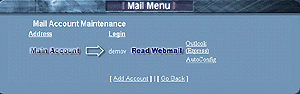
1. Login to
C-Panel
2. Select
"Add/Remove accounts"
3. Select
"Add Account"
4. Enter an
email name
5. Select
"Create"
Just enter a name, (the
@yourdomain
part is added automatically)
That's it, done! Your private pop 3 email account is now
ready for use. If you're a little lost on how to manually
configure an email account into your mail reader, please
see the detailed tutorials on how to configure Outlook and
Netscape mail readers.
SPECIAL NOTE!
If you've enabled Sub-Domains,
you'll observe a duplicate email account appearing,
which corresponds to each sub-domain you've added.
Please ignore these duplicate addresses for the time
being. This is a new feature under development and
will soon enable the ability to configure email accounts
for your sub-domains. For example, if you configured
support.yourdomain.com, then you'll be able to use the
address
mailto:tom@support.canada000.com.
For the time being, please configure email address's
that correspond to your "regular"
domain, and just ignore the sub-domain duplicates.
ALSO: Any duplicate sub-domain email address's you
see appearing in your pop mail setup configuration "DO
NOT" count towards your allocated number of pop mail
boxes we've provided. In short, just ignore them
for now :-)
Setting Your Default Email Address:

It appears pretty simple, but read
through this documentation, as this controls much more
that you'd expect. As mentioned in the previous
chapter, your "default email address" is the one, which
can be used as a "catch all", or in other words, to
"catch all mail", which is addressed to
anything@yourdomain.com. Using
a catch all can be a blessing and sometimes a curse.
The "catch all" is excellent if you have a high
frequency of people whom mistype your email address, as
these addresses (even though mistyped), will simply be
bounced to your "catch all" or "default" email account.
That is, providing they at least managed to spell your
domain name properly :)
If you're not planning on using
multiple "private email boxes", then you can keep life
very simple - just configure the default email address
in your mail reader and leave it at that. This
way, you'll receive everything sent to your domain.
There are indeed pro's and con's to this method, which
will be discussed in this tutorial.
Setting your default/catch all email account:
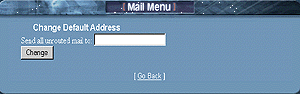
Note:
By default, or until you change
it, the default email address will be the same as your
"login name."
1. Login to
C-Panel
2. Select
"Default Address"
3. Select
"Set Default Email Address"
4. Enter a desired
default email address
Just enter a name, (the
@yourdomain
part is added automatically)
Select
"Change" and you'll see a
confirmation box, which displays your new default email
address. That's it- done!
Remember: In order
to receive mail, which finds its way into your "Default
Mailbox", you must configure the default address in your
mail reader. If you don't, then all mail, which
bounces to this address will sit on the server unread.
This is easy to do in Outlook Express, as it allows you
to configure and monitor multiple email accounts.
Email readers such as Netscape on the other hand, are
limited to "one" email account. Actually, you could
re-configure your mail reader to check your default
email box every few days, but who wants to be bothered
with that trouble? We suggest using an email
reader, which allows you to configure multiple email
accounts.
The Webmail Alternative:
You can also check your default
email account, or another other mail account by logging
into it through the "WebMail" interface. Simply
select the "WebMail" icon at the bottom of C-panel, and
log in to it using your "Main Account"
Username and Password. This will allow to to check
your default email box, as well as other mailboxes
without having to configure them in your mail reader.
In fact, using any pop accounts "Username and Password"
will log you into that particular account through the "WebMail"
interface.
The downside of enabling "Catch All":
Problems can sometimes arise when
Spammers or junk mailers use this feature as a means to
pump their trash into your mailbox. As long as the
"catch all" is enabled, then all they must do is send to
whatever@yourdomain.com and it
will reach you.
On the other hand, if you're using "specific pop email
accounts", you could opt to disable the "catch all",
which would mean that "only visitors or associates who
you've given a specific address to" can send mail to a
particular email account on your domain.
In this case, everything else,
(that you have not configured as a pop mail account) is
bounced back to the sender. In our opinion, we suggest
leaving your "catch all" enabled for the time being. If
Spammers begin sending random junk messages using
anything@yourdomain.com, then
you can disable your "catch all" feature.
Disabling your "Catch All Feature"
Instead of entering a (syntax legal
name), use illegal syntax, which will effectively
disable your email "catch all." For example, using
characters, which are known as 'illegal' to the email
system such as (>>>????) will work just
fine. These are characters, which cannot be used
in an email address, which in effect, will render the
"Catch All" feature useless. Go to your "change
default email address" and add something like the above
as default name.
What happens now?
When Spammy or Jimmy junk mailer
attempts to use a random email address to Spam you, it
will be bounced back to them. That is, unless they happen
to get a hold of one of your "legitimate pop email account
names", in which case, you'd have a different problem on
your hands. Yes, you could either deal with it, or change
the address.
Here is what now happens to a sender using anything@yourdomain.com
:
This is what the sender would
receive. Please note that a classic, but annoying junk
mail example is being used here:
This message was created
automatically by mail delivery software (Exim).
A message that you sent has not yet been delivered to one
or more of its
recipients after more than 24 hours on the queue on
yourdomain.com.
The message identifier is: 14m7gv-0007gl-00
The date of the message is: Mon, 04 June 2001 01:23:02
-0400
The subject of the message is:
MAKE MILLIONS FAST!
The address to which the message has not yet been
delivered is:
anything@yourdomain.com
Delay reason: error in alias file /etc/valiases/anything@yourdomain.com:
missing or malformed local part (expected word or "<") in
"******>>>" (Bad email
syntax)
No action is required on your part. Delivery attempts will
continue for
some time, and this warning may be repeated at intervals
if the message
remains undelivered. Eventually the mail delivery software
will give up,
and when that happens, the message will be returned to
you.
So what
actually happened here?
When the "Catch All" email address
(******>>>@yourdomain.com),
attempted to process an incoming message from
anything@yourdomain.com,
and then forward the (junk message
in this case) to the "catch all/Default" email address, it
freaked out, and said forget it!! The default
email address was set to ******>>> in this case, which is
clearly an email address using "illegal characters", so
the sending process was aborted. Therefore, the mail
system bounced back the above error message to the sender.
There are numerous tricks and special recipes you can
'manually' write into the Unix email system for doing
essentially the same thing, however through C-Panel, this
would certainly seem the easiest way of accomplishing the
task.
Configuring Email Auto
Responder's

What
is an Email Auto Responder?
Email auto responders will
automatically send a customized auto response (that you
compose) to any visitor whom emails the address
configured with one. More specifically, automated
responses are sometimes used to send additional
information about your service or product by having a
visitor email something like
moreinfo@yourdomain.com. In
most other cases, they are used to send a 'courtesy
reply' to anyone whom sends a query to your companies
main email address. When visitors email this
address, they recieve a response such as:
Thanks for contacting our company! Someone will be
returning a response to your question soon. If you
require immediate assistance, please call 555-222-1212.
Thanks!), and so forth.
There are two types of Auto
Responders:
The silent Auto Responder:
In this case, you configure the
responder to send the desired information when it's
emailed, however you 'do not' receive
copies of the inquiries that people originally sent.
This method is typically used if you have a
product and want people to email an address for
additional information on it. You simply tell them
to email
moreinfo@yourdomain.com, and
they receive additional information on it. Again,
you 'will not' receive receipts of the visitors emailing
the auto responder. If you want to do this, please read
the next paragraph.
The Auto Responder that
sends you the original inquiry:
In this case, the auto responder is
setup to work with a
(currently configured pop email account). Now,
the sender receives your automated response, and you
receive their 'original inquiry'.
How to setup an Auto
Responder:
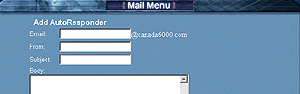
1. login to
C-panel
2. Select
"Auto Responders"
3. Select
"Add Auto Responder"
4. Enter the
"Email Address"
to send the auto response
5. Enter a "From"
name,
(for example, my company)
6. Enter a "Subject", (for example, thank you)
7. Enter your message in the
"Body"
area
Select "Create" and that's
it! Your auto responder is now online. To test it, email
its address and see if you receive the auto response. If
you've configured it to an existing pop mail account,
you should receive 2 responses. The first, which is your
inquiry, (that you just sent to yourself), and the
second, which will be the automated response.
Remember!
If you want to receive the
"Incoming Inquiries" in addition to sending the automated
response, then add an email address, which is
"already" configured as a "pop email account." If you
"do not" wish to receive the original incoming inquiry,
then simply enter a name, which "Is Not" configured as one
of your existing pop mail accounts.
If at anytime you want to update, edit, or delete an auto
response, simply go back into "Auto responders" and you'll
see the current responders configured, as well as options
beside each of them to change or delete.
Blocking Unwanted Email Messages:

From time to time, you may
experience either a junk mailer or some other menacing
individual whom keeps sending you annoying email
messages. C-Panel has a built in feature, which allows
you to block these email messages in a multitude of
different ways. You can block them by:
- Sender
- Subject
- Message Header
- Message Body
Of course, if all you want to do is
block one specific email address, then you don't have to
worry about getting fancy with it - just enter the email
address to be blocked, and that's it, done!
How to use the block email
function:
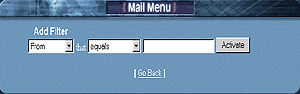
1. Login to
C-Panel
2. Select
"Block an Email"
3. Select
"Add Filter"
If all you want to do is block a
single email address, then simply leave the "current
default setting" as is, and enter in the email address
to be blocked. For example,
annoying-nolife@nothingbettertodo.com
Click
"Add Filter",
and that's it done!
When you click "Back" or login to
this feature next time, you'll see the list of email
address's, and or expressions you've blocked. Beside
each one of them will be a "Delete" option, so that you
can remove the block from your account at a future time.
NOTE: When you block an email address, or some
other keyword, this filtering will be enabled on "All
Email Accounts" within your domain.
Advanced Blocking:
For those of who whom experience
frequent problems with junk email messages, you'll be
please to see this option provides a broad range of
blocking options. Instead of having us try to explain
every last one of them here, this is a feature you'll
really want to experiment with yourself.
Doing so, will allow you to become familiar with the
ways that email can be blocked, and will also help you
with customizing a recipe that works best for your
domain. Play around with the settings, and try to block
words, or phrases based on the From Name, Subject, or
Message Body Text. Now, send an email to your account
and see if the terms and criteria you selected are
providing the filtering you want.
It may take a little time to master, but it's fun, and a
great way to broaden your abilities on web site
administration. FINAL NOTE: If you're
totally new to email blocking, and wish to explore its
full potential, we highly suggest you test it before
launching your site. This way, you don't have to worry
about accidentally disrupting email for your entire
domain.
Hint: Unless
you're 100% sure of what a setting will do, always
delete it when you're finished, or until you have time
to run a series of tests on it. You want to ensure it's
blocking what it's supposed to, and not
legitimate email messages!
A big junk mail problem:
If you're experiencing a high volume
of junk mail, then there's a good possibility Spammers
are taking advantage of your "catch all" option. To
disable this, please see our tutorial on "Default Email
Address."
Email Forwarding:

Email forwarding is a feature,
which forwards an email that originated from your
domain, to another email address. The forwarding address
can be another email address within 'your domain', or to
an 'external email' address, (for example to your home
ISP email account). There are two types of email
forwarding:
Forward silently to another
address:
In this case, the email address from
your domain (setup for forwarding) will divert all
messages to the forwarding address you've selected, and
without sending you a copy of the original message. For
example,
you@yourdomain.com
will automatically forward all
messages to
you@mindspring.com.
Pretty straight forward. (no pun
intended).
Forward to another address,
but also send you the "original inquirey":
This is the method most commonly
used. For example, you have two other partners who wish
to receive all incoming inquiries to the company.
Perhaps you're the one who responds to them, but your
counterparts would like copies of the incoming activity
as well. The method for accomplishing this is pretty
well the same as above, except in this case you would
configure one of your "existing pop email accounts", as
that is how you'd receive a copy of the original
incoming message.
Example: When
General@company.com (your
companies main address) is mailed, you would typically
be the only one to receive the response, however if
you've configured forwards for your two counterparts
(Bob and Mary), then
bob@doodles.com
and
mary@yourdomain.com
could also receive a copy of the
incoming messages.
How to setup a mail forward:
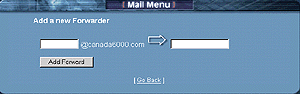
1.
Login to
C-Panel
2. Select
"Forwarders"
3. Enter a
configured pop email account
name if you want to recieve original inquiries. (Enter
a none configured email address if you do not)
4. Enter the email address
you want it to relay a copy of the
message to
5. Select "Add Forward"
All messages will now be
forwarded to the forwarding address, and with a copy sent
to you
Need to Forward to more than one person?
Simply repeat the above process using the same address
you've setup as the forward, and enter the additional
recipients you would like to send a copy of the message
to. All email forwards will be listed in your
"Email Forwarder" administrator. You can delete forwards
when you no longer require them,
Testing your forward.
If you want to test your new mail
forward, it's recommended that the email account you're
testing from "is not" one of the accounts you're using
in conjunction with the forwarder you've just setup. For
example, if you've configured
harry@yourdomain.com to
forward copies to
bob@doodles.com
and
mary@yourdomain.com,
then send a test message from an
email address, other than one of the addresses you've
just setup, otherwise it can somewhat confusing in
figuring out which message was coming from the actual
forward, and which was the original sent from you.
Accessing your mail through the web based interface
C-Panel extends the versatility of its
email system by allowing you to access any one of your
email accounts through its own web mail interface. You
have the choice of accessing all mail through the web,
or any of your private pop email accounts. Gone are the
days of having to create several email accounts on
various free html based mail systems, as now you have
your own, which operates from "your account."
Accessing your mail through the web mail interface:
1. Login to
C-Panel
2. Select
"Add Remove Accounts"
Beside the email account you wish
to access, Select the
"Read WebMail"
button. A username and password
prompt will appear, and are the
same as the username and password you created with that
particular account. NOTE: Remember to use the
"full' email address as the account login name for
the account you're accessing.
The first screen you'll see:
If it's the first time you're
accessing this email account through WebMail, a setup
screen appears. Actually, all this really does is
display how you'll be identifying yourself in email
messages. Everything is pretty much the same as what you
setup the "original pop mail account" with, however
check it closely and make sure everything is appearing
as you want it.
Does everything look
correct?
If so, then click "Save" and a
dialog box pops up, which confirms your settings as
being saved successfully. Click "Continue"
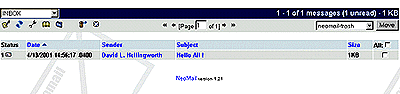
and you'll be taken to your WebMail inbox. To the top
left of the screen, you'll observe the following icons.
Clicking on any one of them will do the following.
Notes:
|
 |
Compose a new message |
|
 |
Refresh the screen |
|
 |
View user preferences |
|
 |
Open address book |
|
 |
View or add new folders |
|
 |
Empty your trash folder |
To delete or move a message,
select the small box beside it. Select where you
which to place it using the drop down menu (top right of
screen), then click "Move".
-
Open address book, allows you
to add and edit email address's . You can also export your
Outlook or Netscape Address Book,
which equips your account with all
the email address's
you currently use.
|